Embedding a Form with a Shortcode
Once you have built and saved a form in Formcierge, you can display it anywhere on your WordPress site using a **shortcode** — a short piece of text in square brackets, like `[formcierge id="5"]`. This tutorial shows you where to find your form's shortcode, and three ways to embed it: in a page or post editor, in a widget area, and in a theme template file. You will also see how to preview the embedded result.
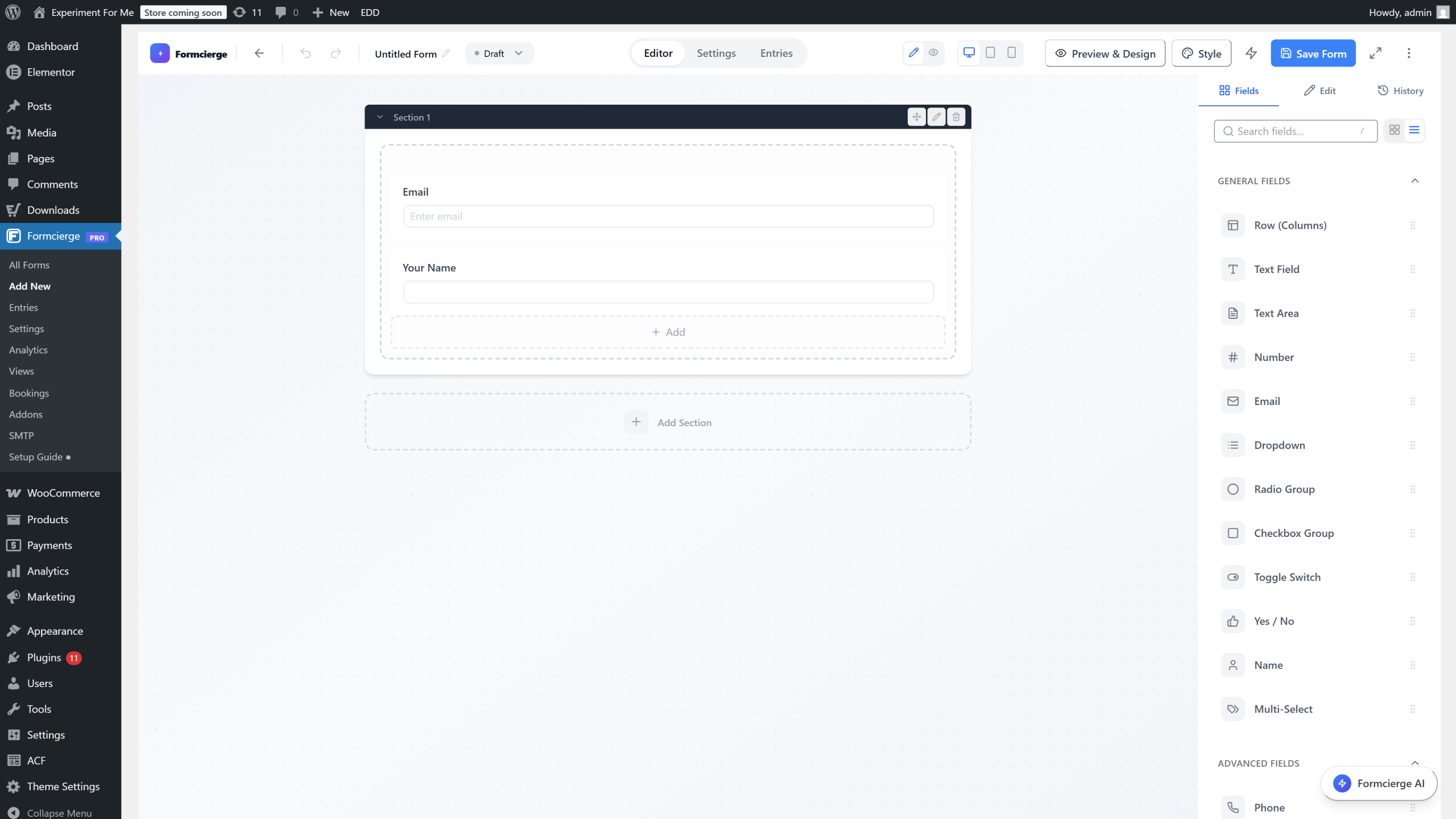
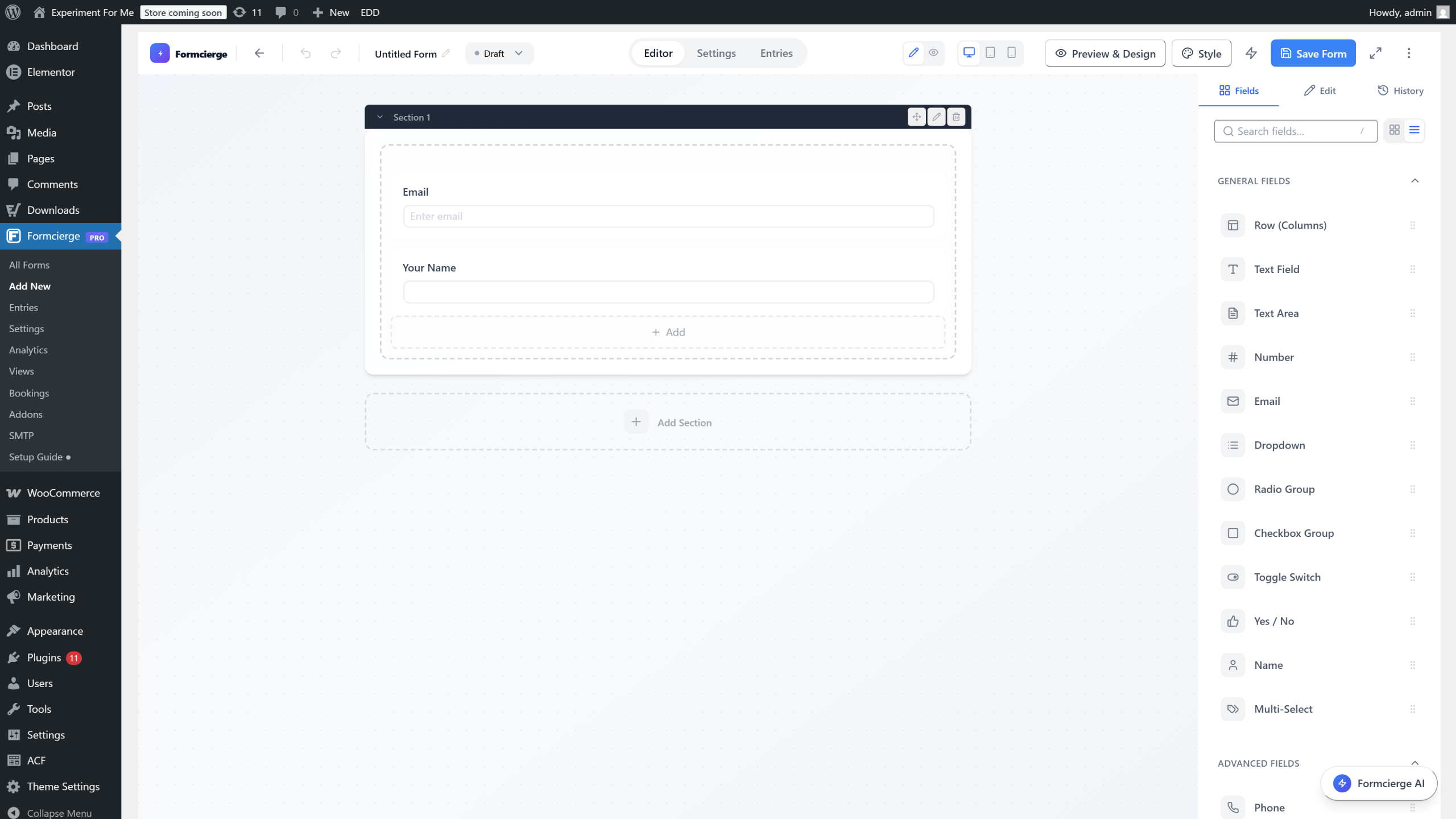
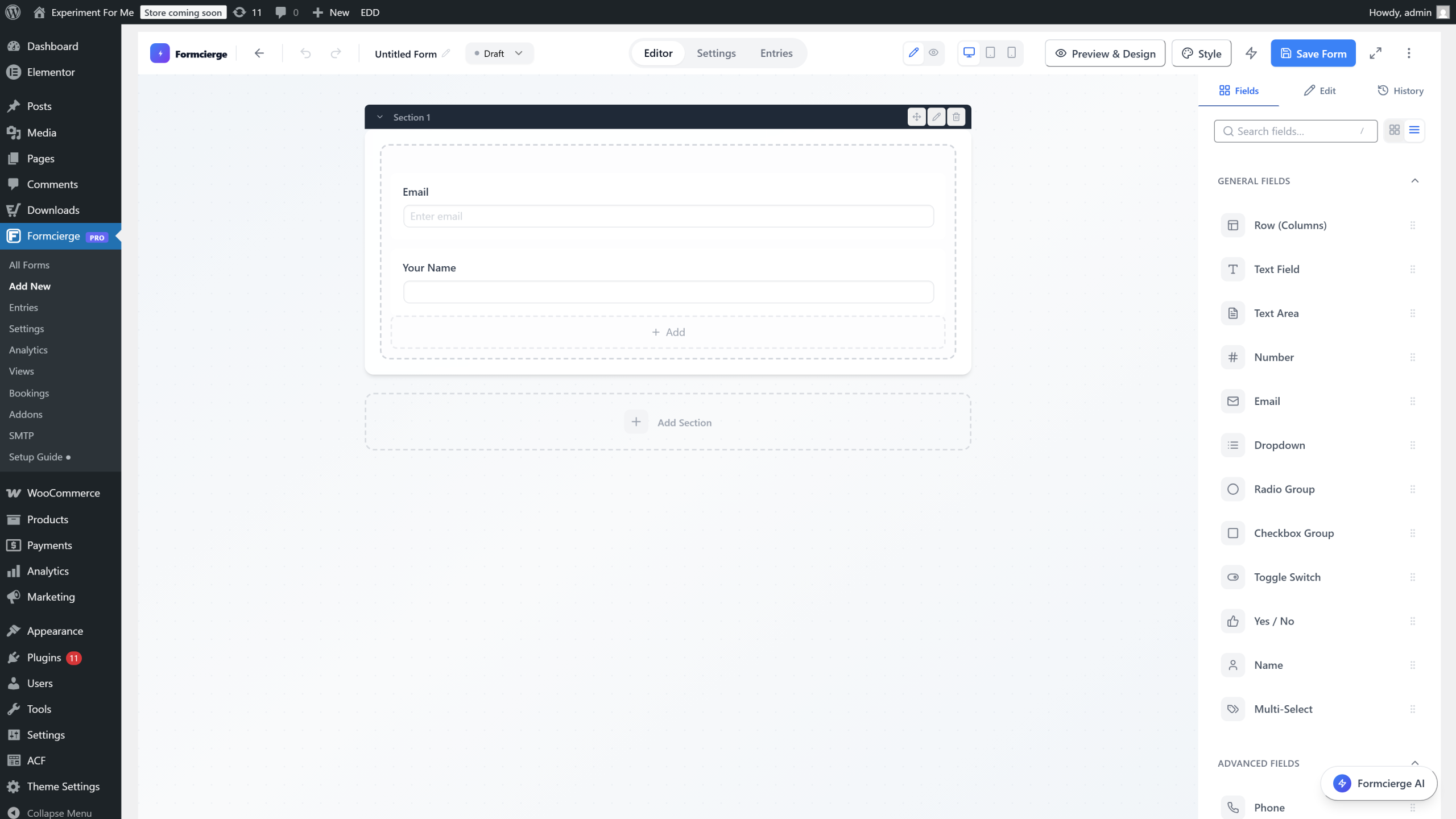
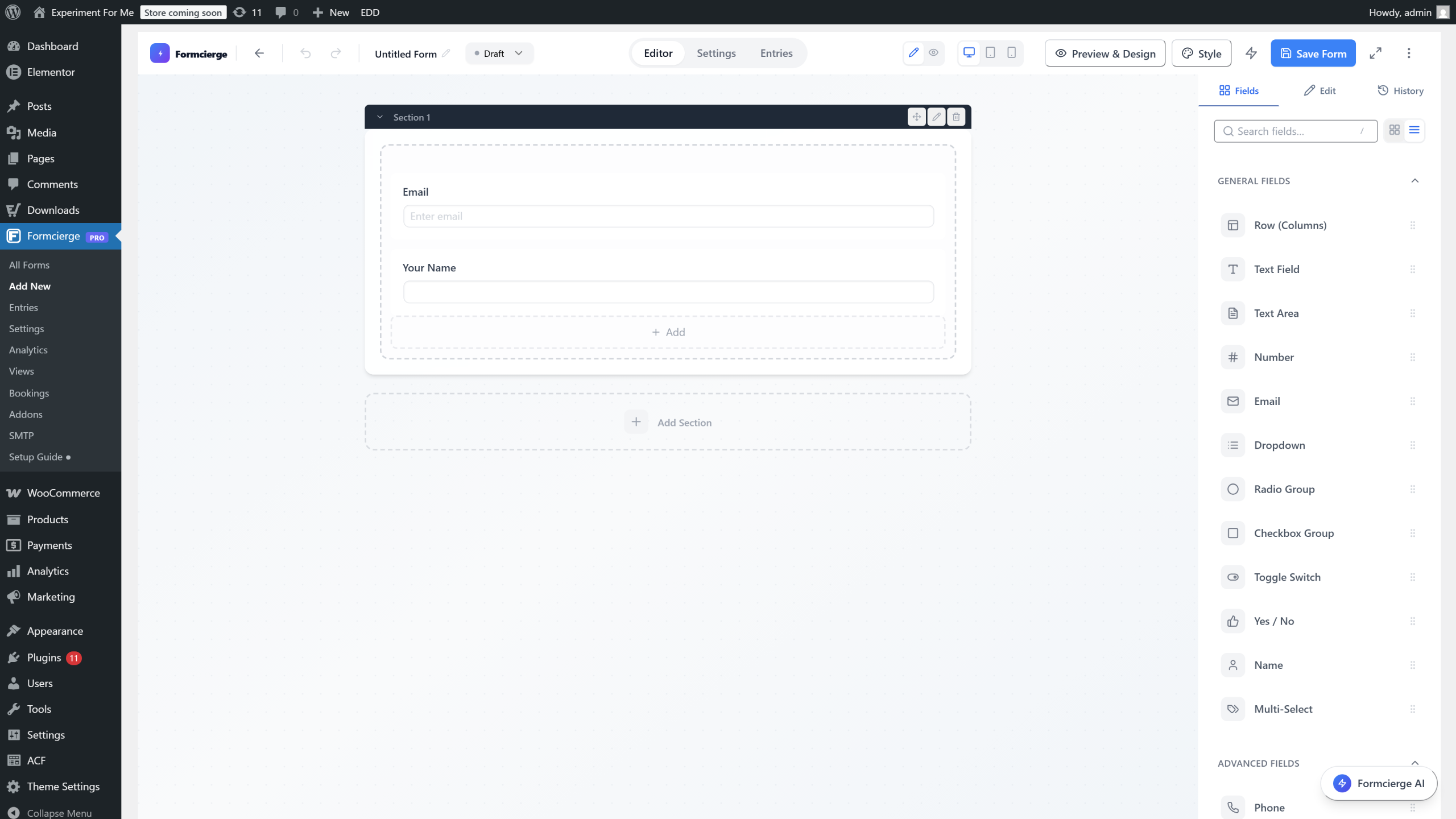
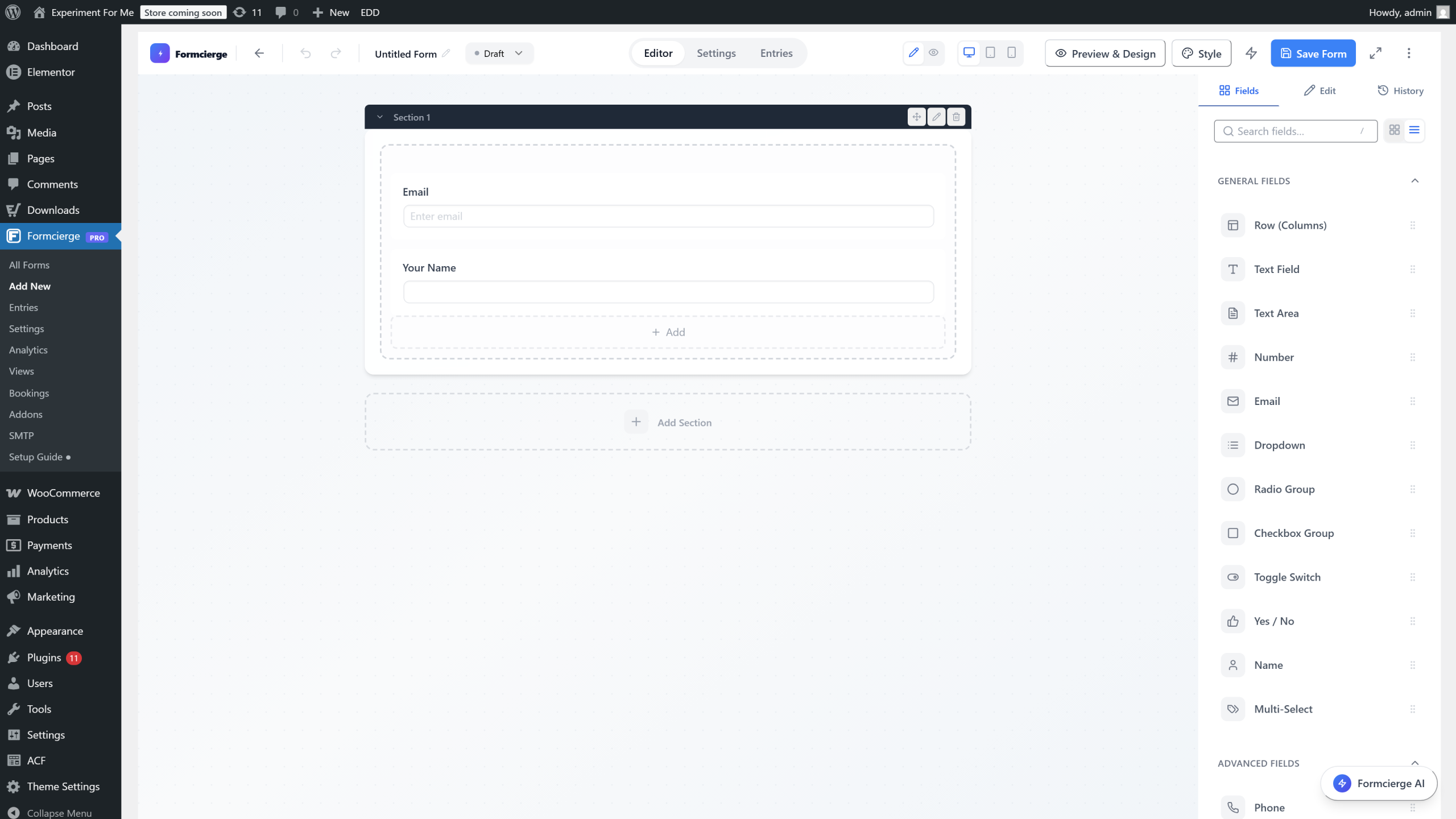
The form builder opens automatically when you create a new form. For this tutorial you just need a couple of fields to have something to embed. The form has been started for you — you will add two fields in the next steps, then save the form to get your shortcode.
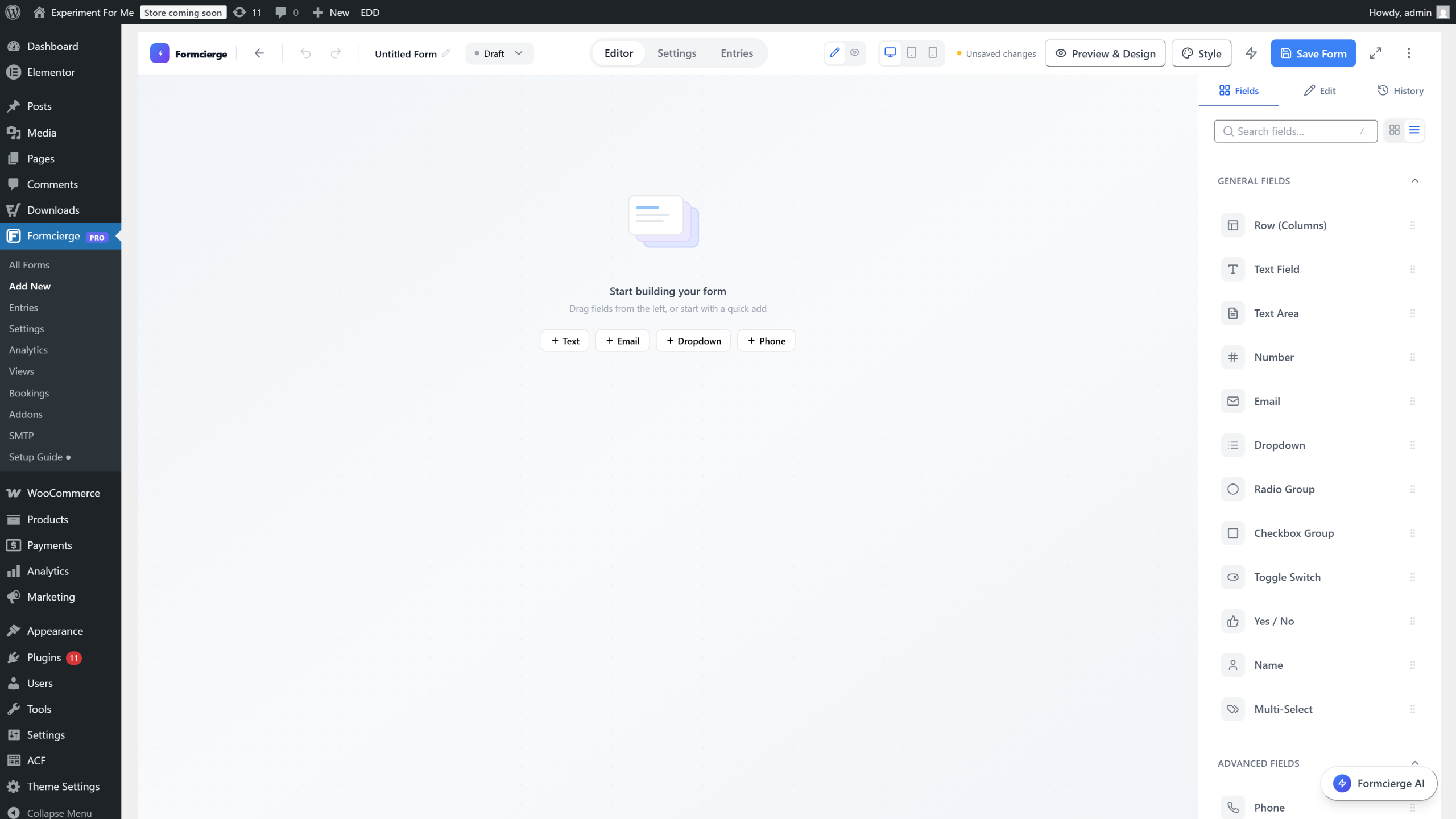
Drag the **Text Field** from the left panel onto the canvas. This will be the visitor's name input.
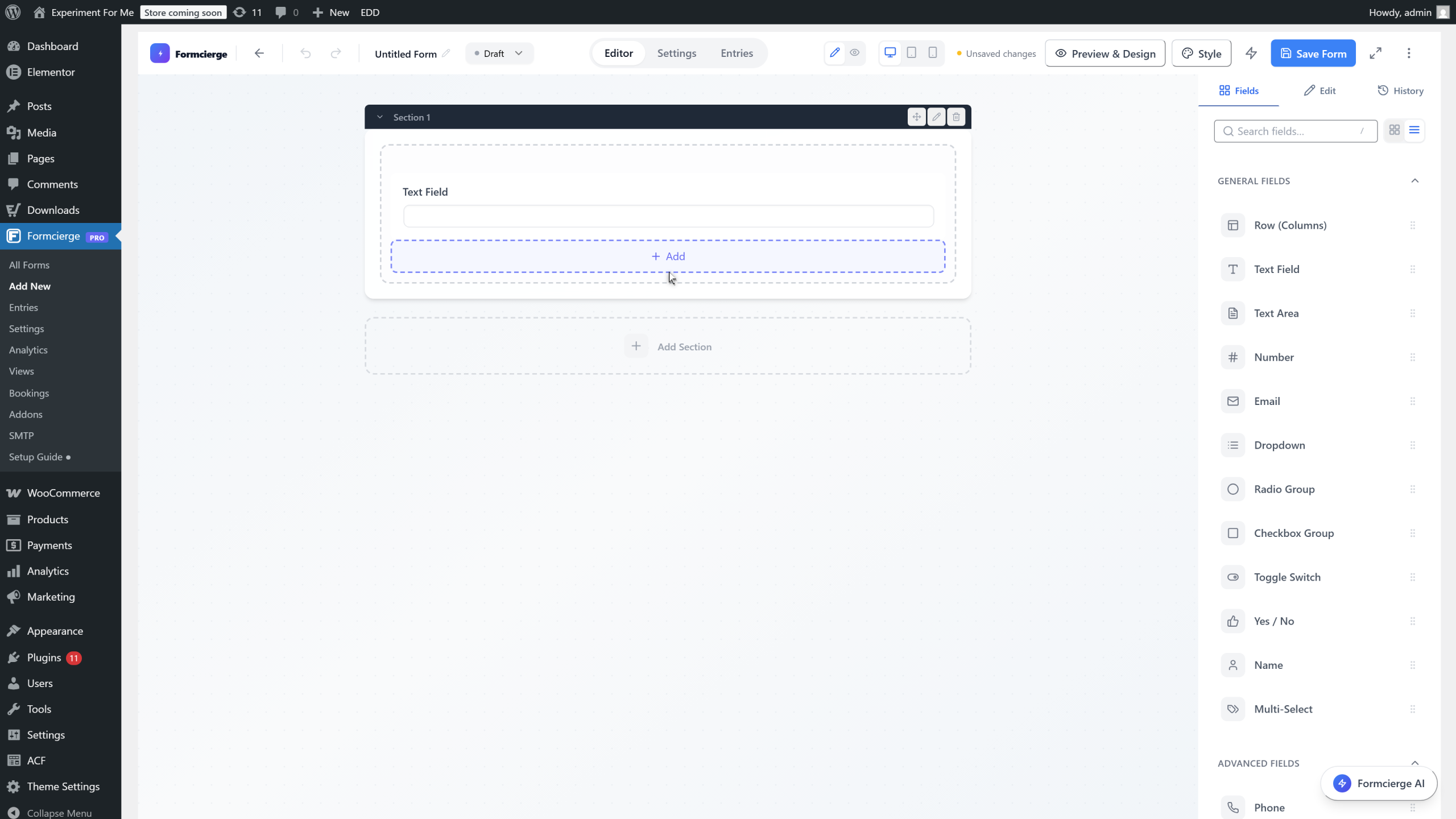
Click the **Text Field** on the canvas to open its settings, then set the **Label** to **Your Name**.
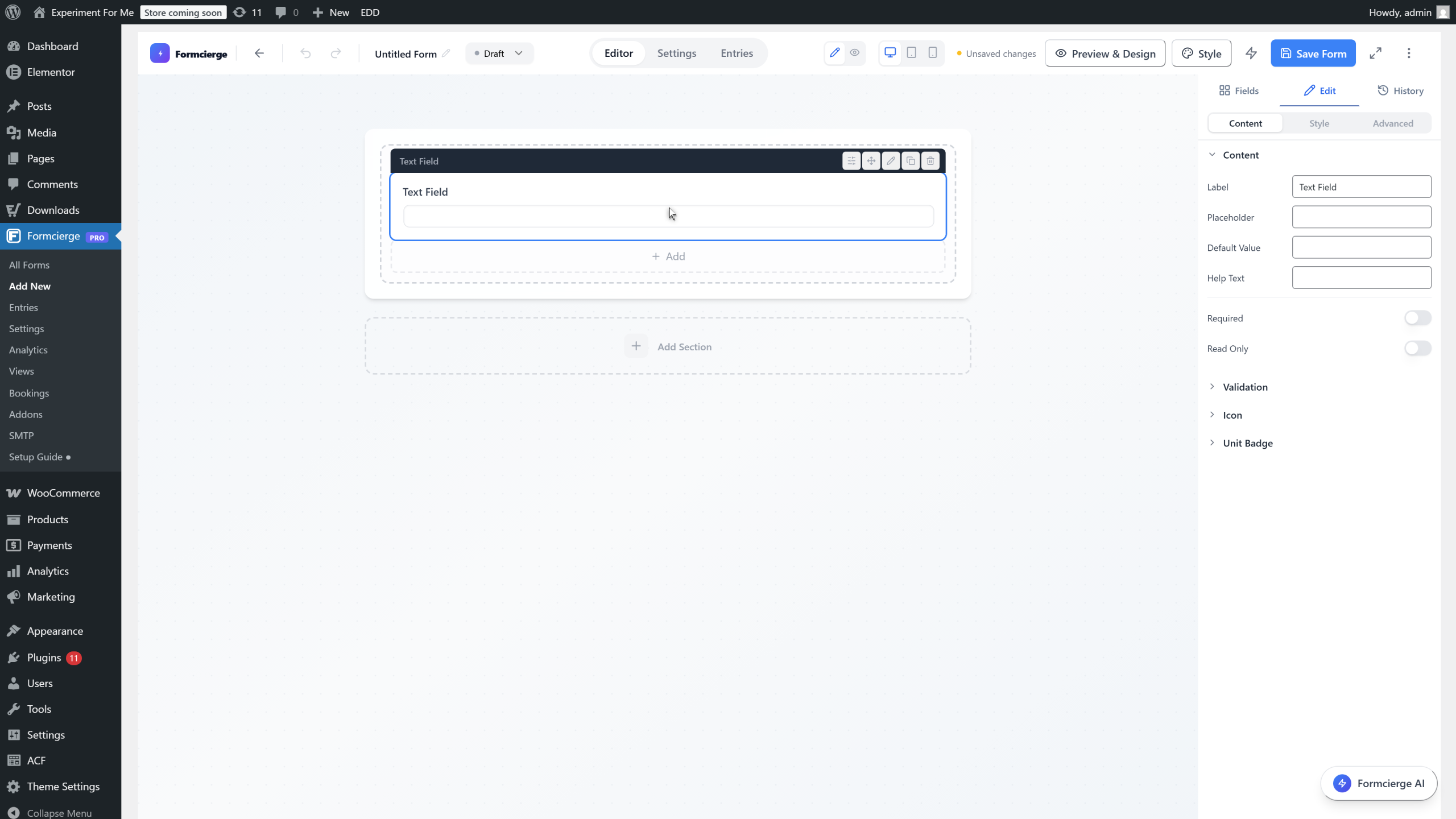
In the right panel, update the **Label** field to **Your Name** so the field's purpose is immediately clear on the form.
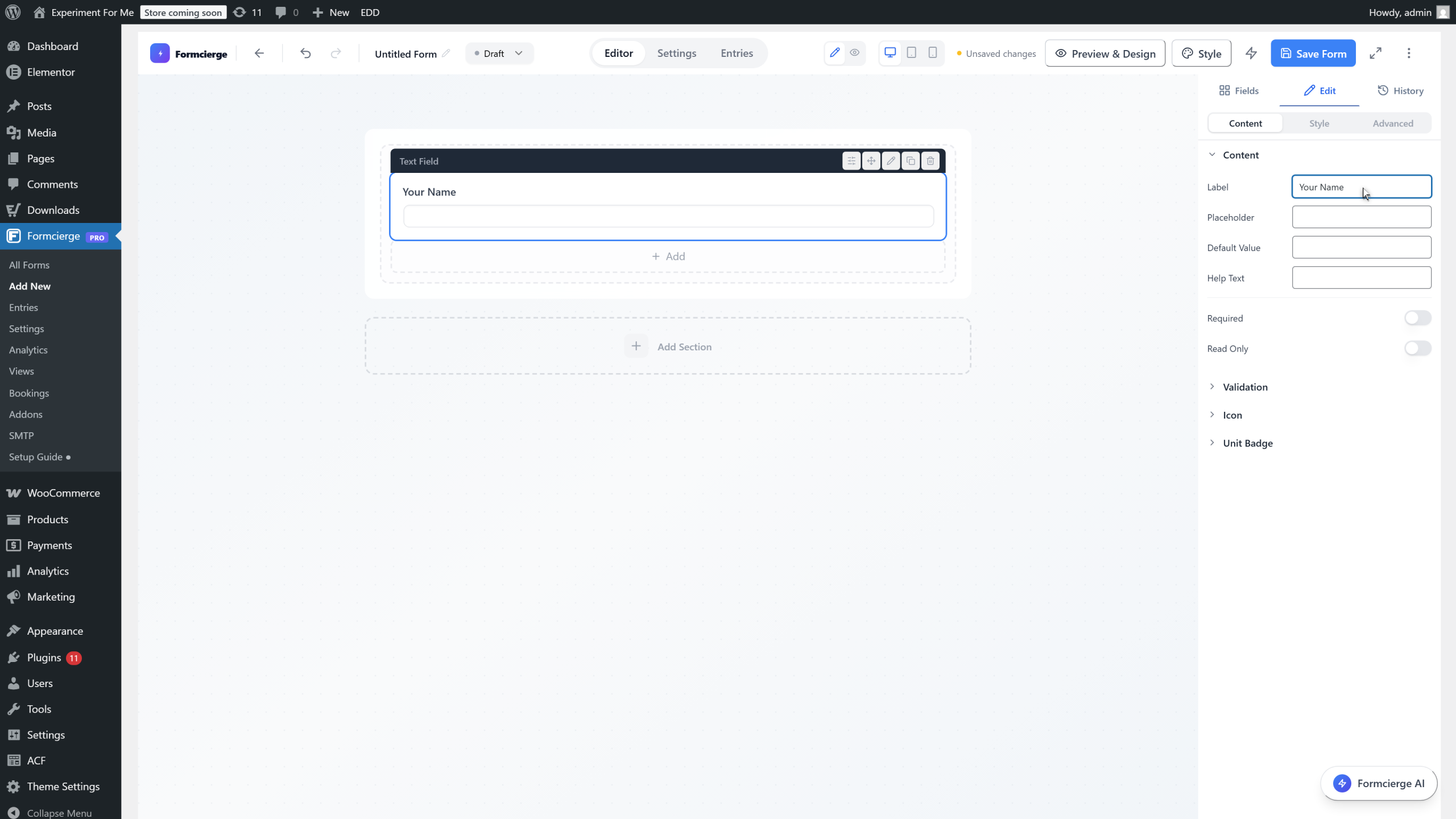
Drag the **Email** field from the left panel onto the canvas below the name field.
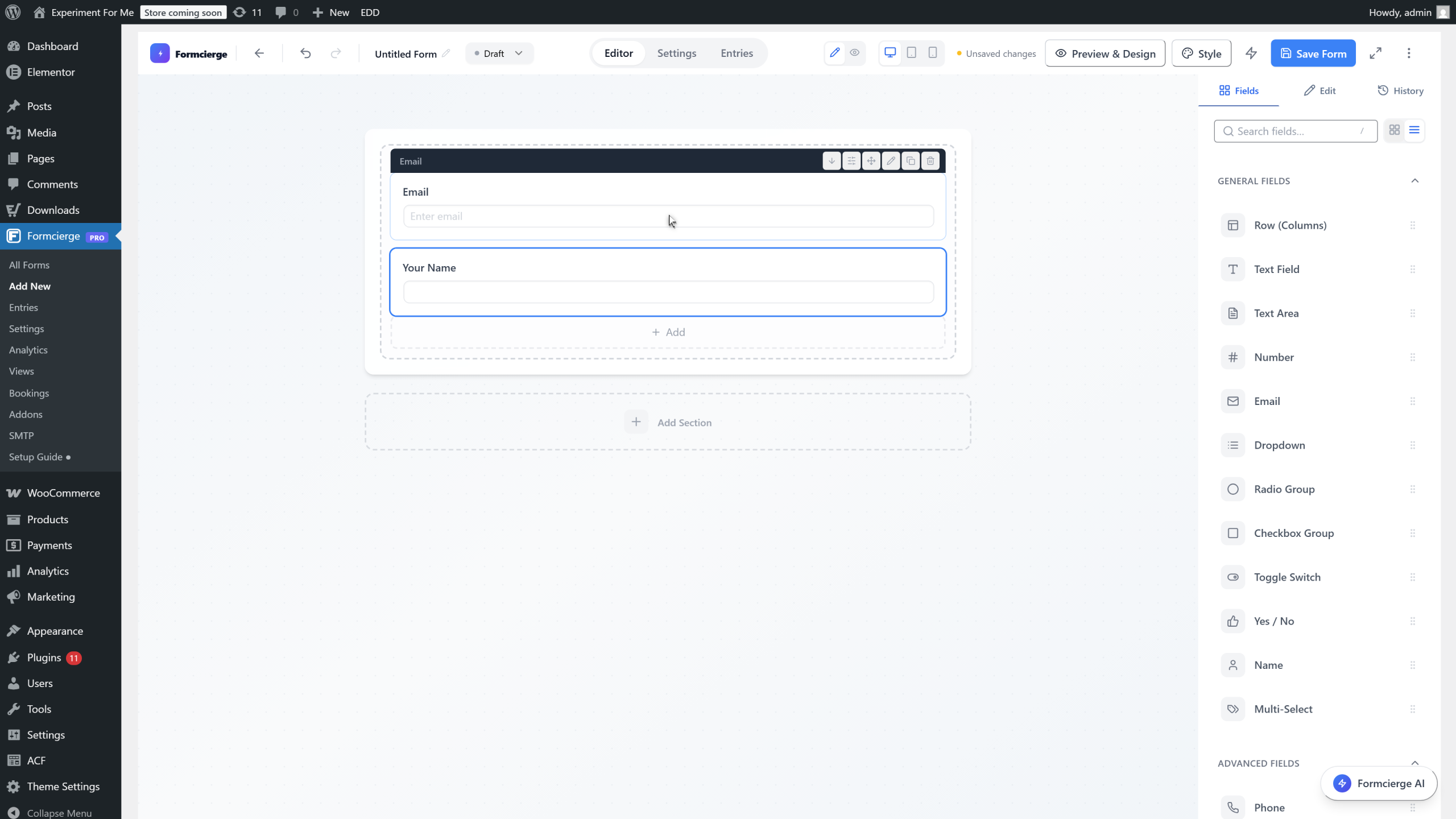
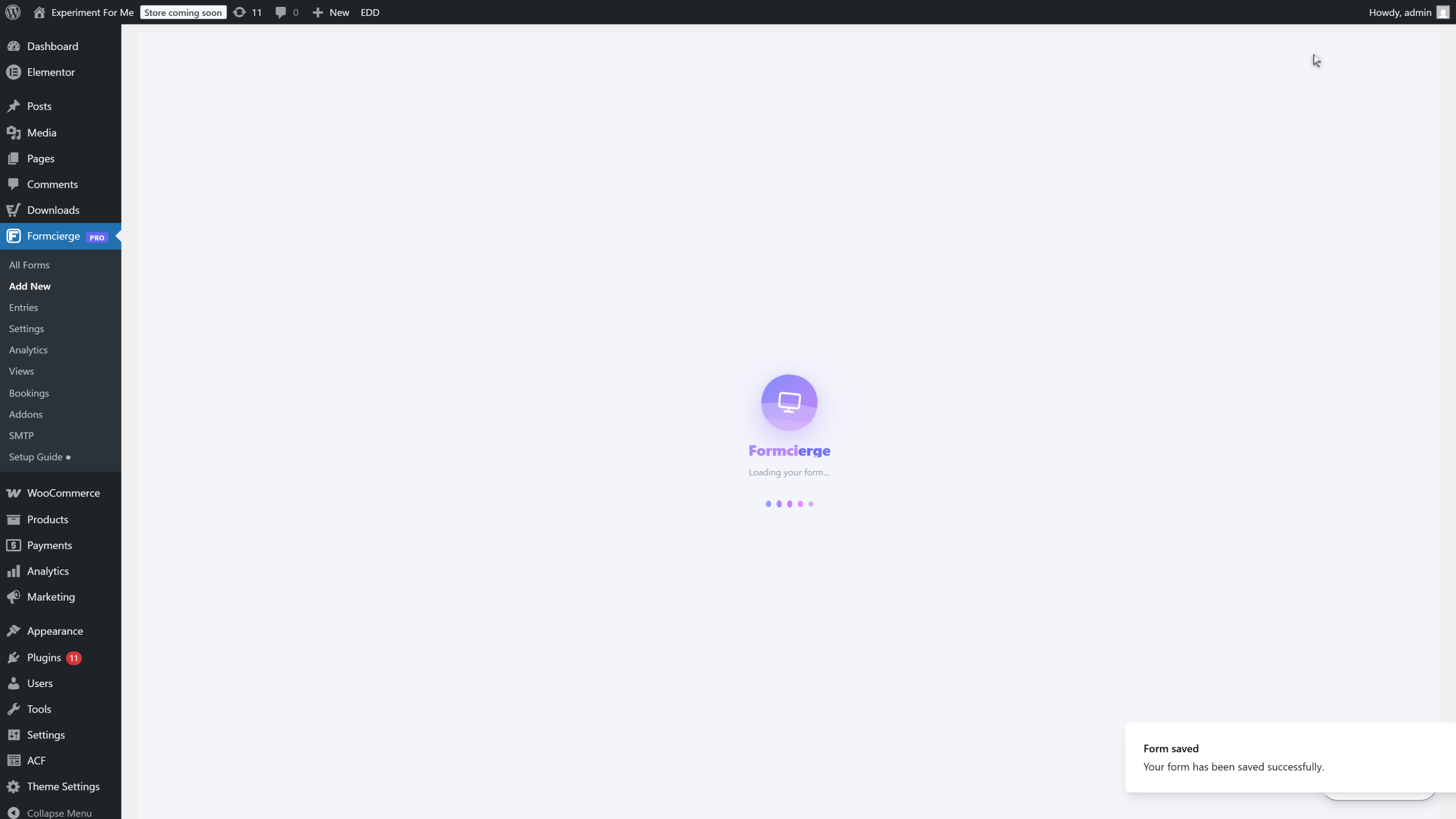
Click **Save Form** in the top bar. Formcierge saves the form and assigns it a permanent ID number — for example, ID *5*. This ID is the key part of the shortcode. You will need it in the next step.
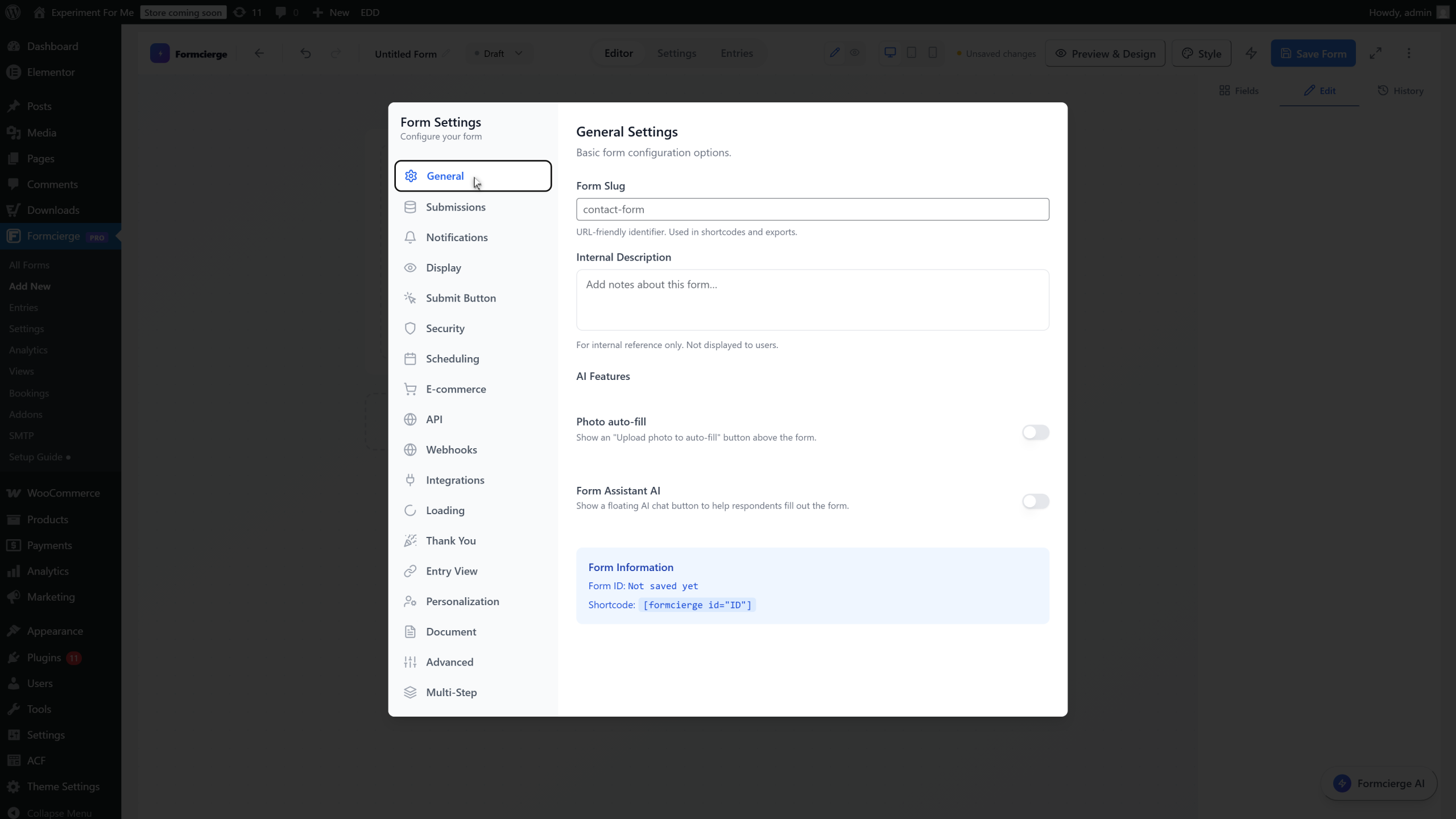
Click the **Settings** button in the top bar to open the Form Settings panel. Inside, go to the **General** tab (it is usually open by default). You will see a blue **Form Information** box showing your **Form ID** and the ready-to-use **Shortcode** — something like `[formcierge id="5"]`. Click it to copy it to your clipboard.
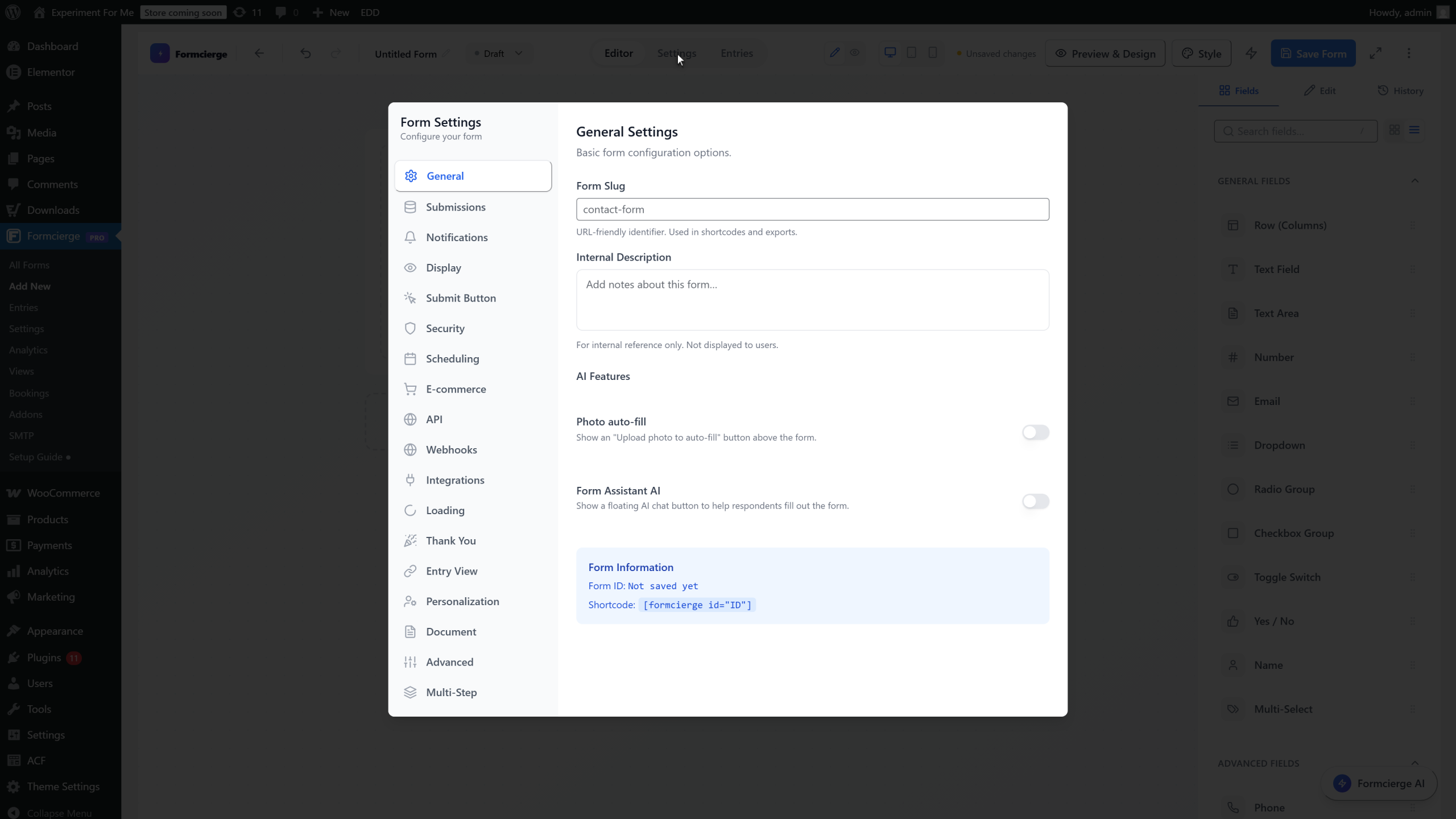
The **General** tab shows the Form Information box with your shortcode. The format is always `[formcierge id="X"]` where X is the number shown next to *Form ID*. Write this number down — you will use it in the next steps to embed the form.
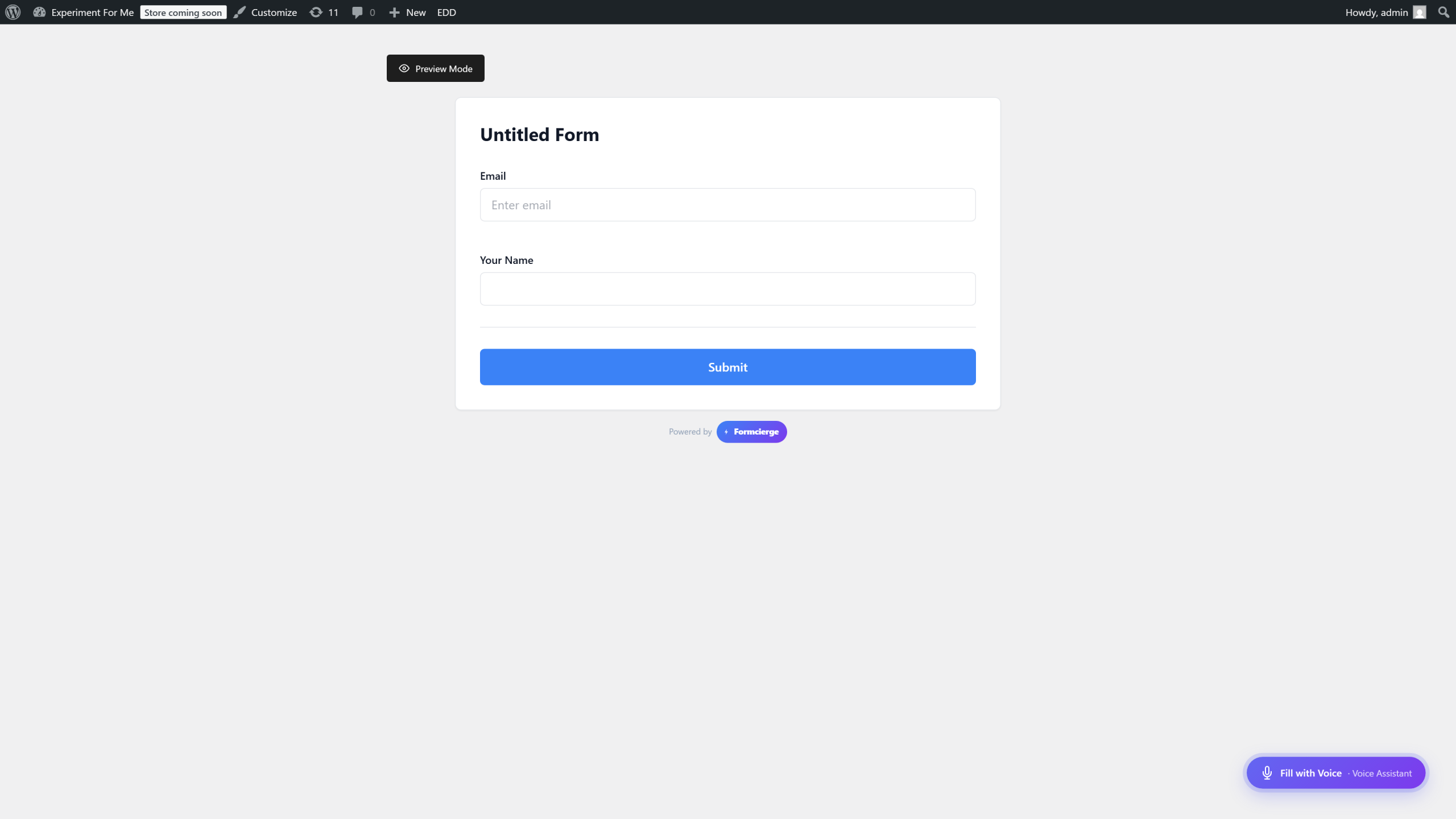
Before you embed the form, click **Preview** in the top bar to open a live preview in a standalone page. Check that the form looks and works as expected — test the field labels, placeholder text, and the submit button. This is the same form your visitors will see once you embed it.
Return to the builder, then go to **Pages → Add New** (or edit any existing page) in your WordPress admin. You can embed the shortcode in three ways depending on which editor you use.
If you use the **Block Editor** (Gutenberg), click the **+** button to add a new block, then search for **Shortcode**. Select the Shortcode block, and paste `[formcierge id="5"]` (using your actual form ID) into the block's text field. Click **Preview** or **Publish** to see the form live on the page.
If you use the **Classic Editor**, switch to the **Text** tab (not the Visual tab) in the editor, then paste `[formcierge id="5"]` directly into the content. Switch back to the Visual tab — you will see a placeholder where the form will appear. Click **Update** or **Publish** to save the page.
To add a form to a sidebar, footer, or any widget area, go to **Appearance → Widgets**. Add a **Shortcode** widget (or **Text** widget in older themes) to the desired area, and paste `[formcierge id="5"]` into it. Save the widget and visit your site — the form will appear in that widget area.
Developers can also render a form directly inside a theme template file using PHP: ``. Place this wherever you want the form to appear in your template. The form renders fully with all its JavaScript and CSS loaded automatically.
Video Walkthrough
Watch the full step-by-step tutorial